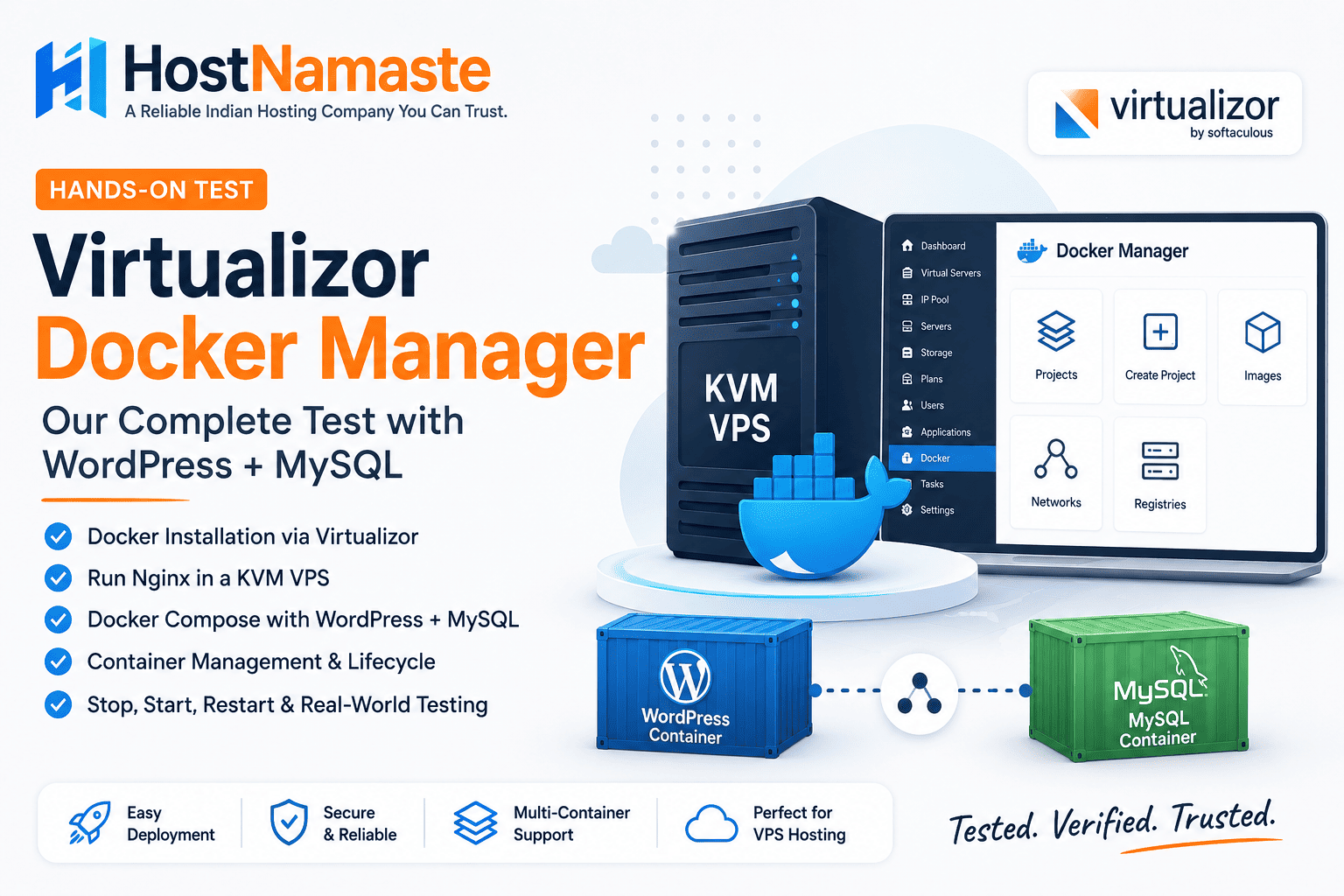
Virtualizor Docker Manager: Our Hands-On Docker, Nginx & WordPress Test
Docker has become one of the most popular ways to deploy applications on a VPS. From simple web servers to complete applications with databases, caching layers, monitoring tools, and development environments, containers make it possible to package and run applications in a consistent environment.
Traditionally, managing Docker on a VPS has meant working directly from the command line. For experienced Linux and Docker users, that is not a problem. But for users who prefer a graphical VPS management panel, having to switch between a control panel and an SSH terminal can make everyday container management less convenient.
This is where Virtualizor’s new Docker Manager becomes interesting.
As part of the Virtualizor 3.2.9 stable release series, Docker Manager was added to the End-User Panel, allowing users to create, start, stop, and remove Docker containers directly through the panel. Virtualizor subsequently added Docker Compose YAML support, allowing multi-container applications to be deployed from a Compose configuration.
At HostNamaste, we wanted to see how this actually works in practice.
Rather than simply reading the Virtualizor release notes and repeating the feature list, we created a dedicated KVM VPS testing environment and worked through the Docker workflow ourselves. We started with a simple Nginx container and then moved on to a more realistic WordPress and MySQL deployment using Docker Compose.
The goal was straightforward: find out what Docker Manager can actually do from the perspective of a VPS user.
What Is Virtualizor Docker Manager?
Virtualizor Docker Manager brings Docker container management into the Virtualizor End-User Panel.
Instead of having to perform every basic container operation through commands such as docker run, docker stop, or docker start, users can work with Docker projects and containers from the Virtualizor interface.
The feature is particularly interesting for VPS hosting because it places container management alongside the other functions users already expect from a VPS control panel.
Virtualizor’s 3.2.9 Patch 2 introduced Docker Manager to the End-User Panel. According to Virtualizor, users can create, start, stop, and remove Docker containers directly from the panel.
The feature was then expanded in Patch 3 with Docker Compose YAML support. This allows users to upload or paste a Compose configuration and deploy applications containing multiple containers from the panel.
That second part is especially important.
Running a single Nginx or Redis container is relatively simple. Real applications often require several services working together. WordPress, for example, normally needs both the application itself and a database.
Docker Compose makes it possible to describe those services together, while Docker Manager provides a graphical way to manage the resulting project.
What Changed With Virtualizor 3.2.9?
Virtualizor 3.2.9 was a broader platform release that introduced several features and improvements, including VPC networking and beta bare-metal management. Docker Manager was introduced during the 3.2.9 patch series rather than being the only focus of the release.
For Docker users, the most relevant changes were introduced progressively through the patches.
Docker Manager
Patch 2 introduced Docker Manager in the End-User Panel. This brought basic Docker container management into the VPS control panel.
Docker Compose YAML Support
Patch 3 expanded Docker Manager with Docker Compose YAML support. Users can upload or paste a Compose file and deploy multi-container applications through the panel.
Docker Migration and Reinstallation Improvements
Patch 4 addressed Docker-related issues during VPS migration and reinstallation. Virtualizor states that Docker container information is now moved during VM migration, while Docker container records are cleaned up when a Docker-enabled VM is reinstalled.
Multiple-IP Docker Application Fix
Patch 5 addressed an issue where Docker application links were not being created correctly on VPSs with multiple IP addresses.
Continued Docker Fixes
The 3.2.9 stable series has continued to receive maintenance updates. For example, Stable Patch 7, released on August 12, 2026, fixed an issue where Docker containers could be deleted after a container update operation.
For our testing, this is an important distinction: Docker Manager is not simply a single feature added once and forgotten. It has continued receiving fixes and improvements throughout the 3.2.9 stable series.
Why Did We Decide to Test It?
A feature can look impressive in release notes and still behave very differently in a real VPS environment.
So instead of treating Docker Manager as a feature checklist, we wanted to test it from the perspective of an actual VPS user.
Our testing focused on a few practical questions:
- How easy is it to install Docker through Virtualizor?
- Can a user deploy a Docker application without manually running Docker commands?
- Can Docker containers be started and stopped from the panel?
- Can applications be exposed through VPS ports?
- Does Docker Compose work for a multi-container application?
- Can WordPress and MySQL run together successfully?
- What happens when a Docker project is stopped and started again?
- Does the application remain functional after the containers are restarted?
To answer these questions, we created a dedicated HostNamaste KVM VPS specifically for testing.
We intentionally kept the environment separate from production infrastructure and did not use any customer workload for the experiment.
Our Testing Approach
We started with a very simple application: Nginx.
This gave us a controlled way to verify the basic Docker workflow before introducing a database and a more complicated application stack.
After that initial test succeeded, we moved to WordPress + MySQL using Docker Compose.
This second test was much more representative of a real-world Docker deployment because it involved multiple containers, container networking, environment variables, persistent volume configuration, and communication between the WordPress application and its database.
The testing environment and screenshots shown in this article are based on our HostNamaste testing process. Infrastructure-specific information such as public server IP addresses and other environment details has been intentionally omitted.
The purpose of this article is therefore not to reproduce Virtualizor’s documentation. It is to document what we actually tested and observed while working with Docker Manager on a KVM VPS.
Setting Up Our KVM VPS for the Docker Manager Test
To test Virtualizor Docker Manager properly, we created a dedicated KVM VPS specifically for this experiment.
We used a fresh Ubuntu 24.04 LTS installation and kept the VPS separate from our production hosting infrastructure. This allowed us to test Docker Manager without affecting any live customer services.
The purpose of the test was not to benchmark Docker performance or compare different VPS providers. Instead, we wanted to understand the actual user experience of deploying and managing Docker applications through Virtualizor.
Our initial testing environment consisted of:
- Virtualization: KVM
- Operating System: Ubuntu 24.04 LTS
- Virtualizor: Docker Manager enabled
- Initial test application: Nginx
- Second test application: WordPress + MySQL
- Docker Compose: Used for the multi-container WordPress deployment
We intentionally do not publish the public IP address or other infrastructure-specific details of the test VPS.
Installing Docker Through Virtualizor
After creating the VPS, we opened the Virtualizor End-User Panel and navigated to the Docker section.
Rather than manually installing Docker through SSH, we wanted to test the installation process provided directly by Virtualizor.
The Docker section initially displayed an Install Docker option.
We selected the installation option and allowed Virtualizor to perform the Docker installation.
During the process, Virtualizor displayed a status indicating:
Docker installation is running
The installation completed successfully.
After refreshing the Docker section, the interface changed to the Docker management area.
This was our first confirmation that Docker had been installed and that the VPS was ready to use with Docker Manager.
Docker Manager Interface
Once Docker was installed, the Virtualizor Docker section provided several management areas, including:
- Projects
- Create Project
- Images
- Networks
- Registries
The Images section also showed the standard hello-world Docker image after the installation process.
This was useful as an initial indication that the Docker environment was functioning correctly before we deployed our own application.
Creating Our First Docker Project
For the first practical test, we decided not to start with WordPress or another complicated application.
Instead, we selected Nginx.
Starting with a simple web server gave us a controlled environment where we could test the fundamental Docker Manager functions before moving to a multi-container application.
We created a project named:
hn-nginx-test
Virtualizor’s Docker Manager provided an application selector rather than requiring us to manually enter every Docker image name.
Among the available applications, we found Nginx along with several other commonly used applications and services.
We selected Nginx, and Virtualizor populated the relevant Docker image information for the project.
We then deployed the project.
Running Nginx Inside the KVM VPS
After the project was created, Virtualizor displayed the Nginx container as running.
The Docker Manager interface provided information about the container, including:
- Container name
- Docker image
- Current status
- CPU usage
- Memory usage
- Container IP
- Port mapping
For our test, the Nginx container was mapped from a VPS port to the container’s standard HTTP port.
This allowed us to access the Nginx application externally without exposing the container’s internal Docker network address.
We then opened the mapped test port in a browser.
The standard Nginx Welcome page appeared successfully.
This confirmed that the complete workflow was functioning:
KVM VPS → Virtualizor Docker Manager → Docker image → Container → Port mapping → Web application
The important point here is that we didn’t need to manually create the container from the Docker CLI for this test. The project was created and managed through Virtualizor’s Docker interface.
Managing the Nginx Container
Once Nginx was running, we tested the basic container-management controls provided by Docker Manager.
We tested:
- Start
- Stop
- Pause
- Resume
- Restart
The container responded correctly to the operations we tested.
After stopping the container, the Nginx service became unavailable as expected. Starting the container again brought the service back online.
We also tested the pause and resume functionality and confirmed that the container could be returned to its running state.
Finally, we tested restarting the container and confirmed that Nginx became available again.
This was an important part of the test because Docker Manager is not only about creating containers. For everyday VPS management, being able to control the lifecycle of a running container directly from the panel is just as important.
Moving From Nginx to a Real Application Stack
The successful Nginx test gave us confidence to move to something more representative of a real-world deployment.
Our next test was WordPress + MySQL.
Unlike Nginx, WordPress requires a database, which meant we needed more than one container.
This was also the point where Docker Compose became particularly useful.
Instead of managing WordPress and its database as completely separate applications, we wanted to define them as a single multi-container project.
This allowed us to test one of the most interesting additions to Virtualizor Docker Manager: Docker Compose YAML support.
Our goal was to deploy:
WordPress
    │
    └── MySQL
as a single Virtualizor Docker project and then verify whether the resulting application actually worked.
Creating the WordPress Docker Compose Project
We created a second Docker project:
hn-wordpress-test
For this project, we used two services:
hn-wordpress
hn-wordpress-db
The WordPress container used:
wordpress:latest
and the database container used:
mysql:8.0
The Compose configuration also defined the required database credentials, WordPress database connection information, port mapping and persistent volume locations.
The important difference from our Nginx test was that this project contained two containers working together.
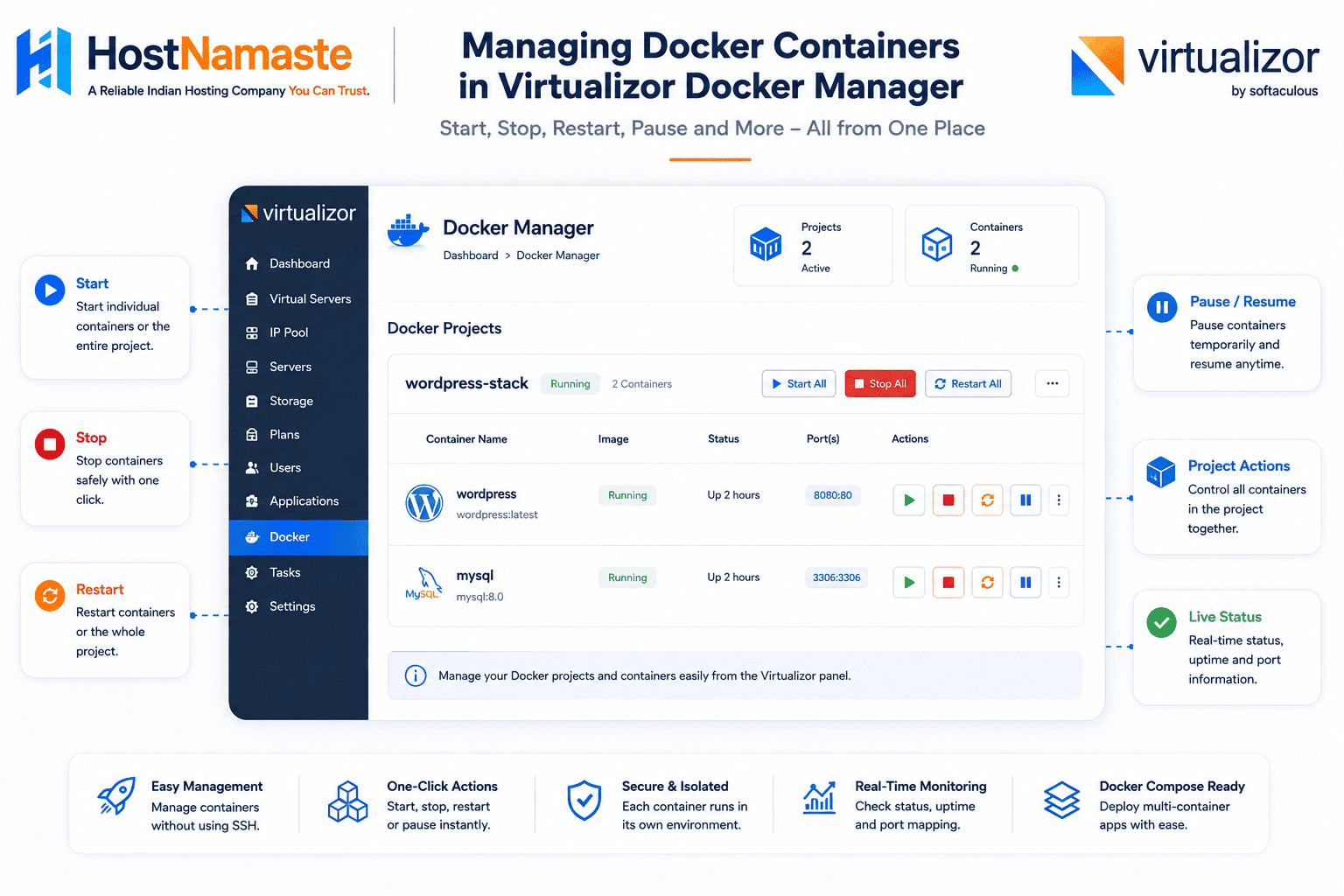
Virtualizor displayed the project as a single Docker project while also showing the individual containers and their respective status information.
Docker Compose YAML Through Virtualizor
Virtualizor’s Docker Manager provides a YAML Editor for Docker Compose configurations.
We used this editor to enter our WordPress and MySQL Compose configuration directly into the Virtualizor panel.
This was one of the features we specifically wanted to test because Docker Compose is commonly used for applications that require multiple services.
The configuration defined:
- A WordPress service
- A MySQL service
- Database environment variables
- WordPress database connection settings
- Port mapping
- Persistent volumes
- Container restart policies
Once the configuration was accepted, Virtualizor began creating the project.
The resulting project contained both the WordPress and MySQL containers.
A Small Compose Configuration Issue During Testing
Our first Compose deployment did not complete successfully.
Virtualizor returned the following error:
Unknown depends_on target: 0 defined in service: wordpress
We reviewed the configuration and simplified the depends_on portion of the Compose file before submitting it again.
The corrected configuration was accepted, and the project was successfully created with both containers running.
This was a useful part of our hands-on testing because it showed that the Docker Compose editor performs validation before deployment.
It also highlighted an important point for anyone using the feature: Compose syntax and compatibility should be tested with the specific Virtualizor version being used rather than assuming that every Docker Compose feature will behave identically to the standalone Docker Compose CLI.
WordPress and MySQL Running Together
After the corrected configuration was deployed, Virtualizor showed:
2 RUNNING, 0 STOPPED
for the hn-wordpress-test project.
The project contained:
hn-wordpresshn-wordpress-db
The WordPress container was exposed through the configured test port, while the MySQL container remained part of the internal Docker application network.
We then opened the WordPress application through the test port.
The standard WordPress installation screen appeared successfully.
This was an important milestone in our testing.
It demonstrated that:
Virtualizor Docker Manager → Docker Compose → WordPress container → MySQL container → WordPress web interface
was working as expected.
Completing the WordPress Installation
We completed the standard WordPress installation process through the browser.
WordPress successfully connected to the MySQL container and completed the installation.
After installation, we were able to access the WordPress administration dashboard normally.
This confirmed that the two containers were not simply running independently; the WordPress application was successfully communicating with the database service through the Docker network.
At this point, we had moved from a simple single-container Nginx test to a functional multi-container application running on the KVM VPS.
Stopping and Starting the WordPress Project
We then tested one of the most important everyday management operations: stopping and starting the entire Docker project.
When we stopped the hn-wordpress-test project, Virtualizor showed both containers as stopped:
hn-wordpress       STOPPED
hn-wordpress-db    STOPPED
We then started the project again.
Virtualizor brought both containers back into the running state:
2 RUNNING, 0 STOPPED
We opened the WordPress application again and confirmed that it was working.
The WordPress installation remained available, and we could access the administration area normally.
This confirmed that the basic project-level stop → start → recovery workflow worked successfully during our test.
Restarting the Docker Project
We also tested the restart operation.
The WordPress and MySQL containers were restarted through Virtualizor, after which the project returned to its running state.
WordPress remained accessible after the restart.
For a multi-container application, this is an important practical test because users will commonly restart services during maintenance, configuration changes or troubleshooting.
Our test showed that the complete WordPress project could be restarted through Docker Manager without having to manually recreate the containers.
Verifying the Docker Deployment in the Browser
After confirming that the containers were running correctly inside Virtualizor, we also verified the applications externally through a web browser.
For the Nginx test, we opened the configured web port and received the standard “Welcome to nginx!” page. This confirmed that the Nginx container was running and that the configured port mapping was working correctly.
We then tested the WordPress deployment. The WordPress installation page loaded successfully, allowing us to complete the initial WordPress setup.
After completing the installation, the WordPress site was accessible and displayed the default “Hello world!” post.
This gave us an end-to-end confirmation that the Docker containers, networking and applications were functioning correctly.
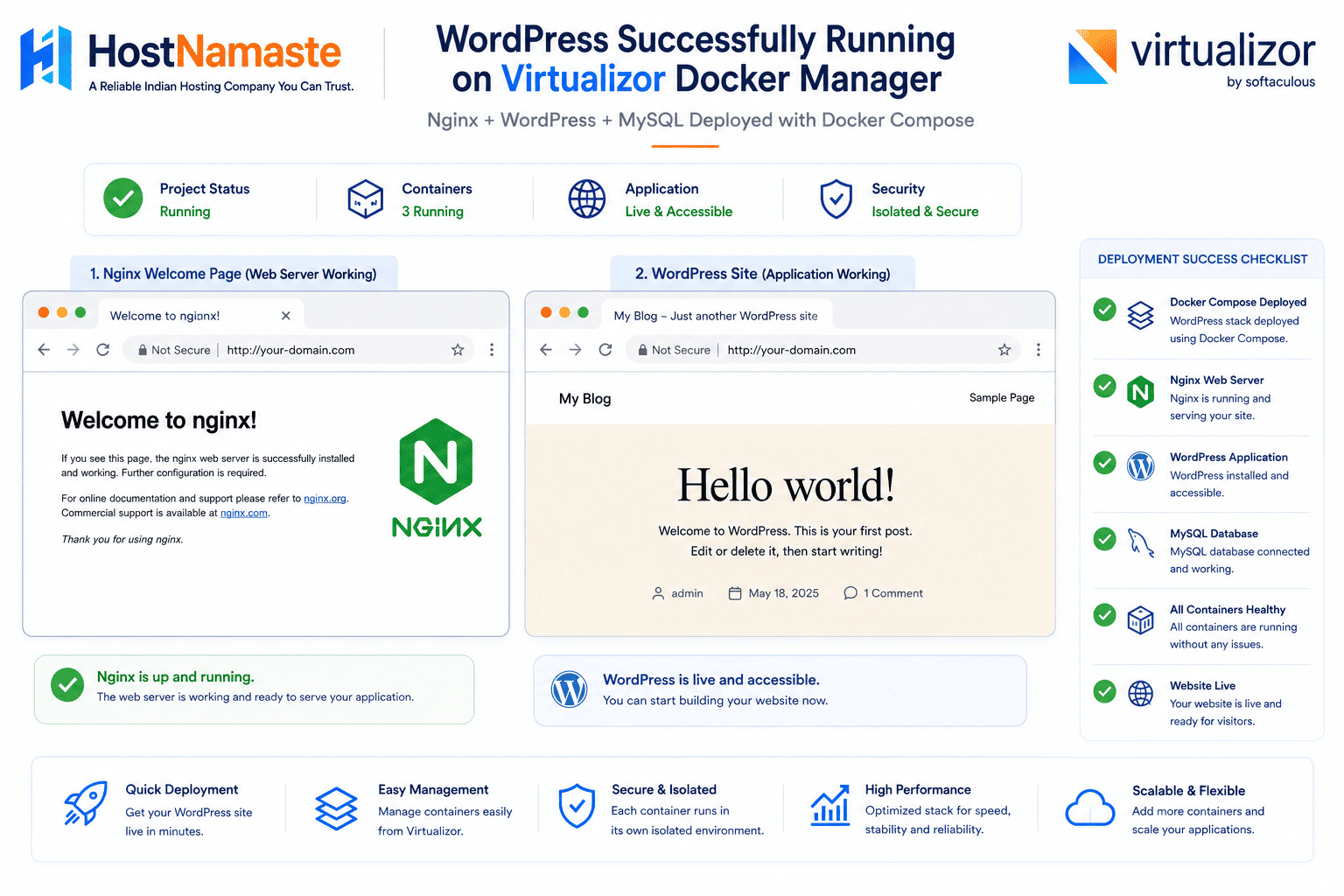
Live verification of Nginx and WordPress running through the Docker deployment.
The test was particularly useful because it verified the actual application response rather than relying only on the RUNNING status shown in Virtualizor.
What We Observed
After completing these tests, the basic Docker workflow was working successfully in our environment.
We were able to:
- Install Docker through Virtualizor
- Access Docker Manager
- Select a Docker application
- Create a Docker project
- Deploy Nginx
- Configure port mapping
- Start and stop containers
- Pause and resume a container
- Restart a container
- Create a Docker Compose project
- Run WordPress and MySQL together
- Complete a WordPress installation
- Stop the complete project
- Start the complete project again
- Restart the project
- Access WordPress after the restart
The next stage of testing would involve areas such as backup and restore, migration, volume behavior during container recreation, resource limits and other production-oriented scenarios.
For this initial hands-on test, however, the core Docker Manager workflow performed successfully.
What Worked in Our Virtualizor Docker Manager Testing
After completing the Nginx and WordPress + MySQL tests, we had a good opportunity to evaluate the basic Docker workflow from the perspective of a VPS user.
The following functions worked successfully in our testing environment:
| Test | Result |
|---|---|
| Docker installation through Virtualizor | ✅ Passed |
| Docker Manager access | ✅ Passed |
| Docker image selection | ✅ Passed |
| Nginx container deployment | ✅ Passed |
| Port mapping | ✅ Passed |
| Container start | ✅ Passed |
| Container stop | ✅ Passed |
| Container pause/resume | ✅ Passed |
| Container restart | ✅ Passed |
| Docker Compose project creation | ✅ Passed |
| WordPress container deployment | ✅ Passed |
| MySQL container deployment | ✅ Passed |
| WordPress + MySQL communication | ✅ Passed |
| WordPress installation | ✅ Passed |
| Project stop/start | ✅ Passed |
| WordPress availability after project restart | ✅ Passed |
The most significant part of our test was the WordPress deployment.
A simple Nginx container can confirm that Docker itself is working, but a WordPress installation requires multiple services to communicate correctly. In our test, the WordPress application and MySQL database were successfully deployed as separate containers and worked together as expected.
What We Liked About Docker Manager
One of the biggest advantages we noticed was the ability to perform common Docker operations from the Virtualizor interface.
For users who are already comfortable with Docker CLI commands, this may not seem particularly important. However, for VPS customers who prefer a graphical management environment, having these controls available alongside their normal VPS management functions can make Docker considerably easier to approach.
The Docker Manager workflow also provides a useful separation between the VPS itself and the applications running inside Docker.
Instead of treating Docker as something that has to be managed completely independently, users can access their Docker projects from the same environment where they already manage their VPS.
The Docker Compose functionality was particularly useful for our WordPress test.
Rather than creating the WordPress and MySQL containers separately through individual Docker commands, we could define the application stack in YAML and deploy it as a project.
For multi-container applications, this is a much more practical approach.
Docker Compose Makes the Feature More Interesting
If Docker Manager only supported individual containers, its usefulness would be somewhat limited for more complex applications.
The addition of Docker Compose changes that.
A Compose configuration can describe multiple services that need to work together.
For example, our test application consisted of:
Both services were deployed within the same Docker project.
This approach can also be useful for other applications that require multiple components, such as:
- Web applications with separate databases
- Development environments
- Monitoring stacks
- Content management systems
- Application servers
- Reverse proxy configurations
- Self-hosted services
Of course, whether a particular Compose application works correctly will depend on its configuration and compatibility with the Docker environment.
What We Have Not Tested Yet
Our testing was deliberately focused on the core Docker Manager workflow.
That means there are several areas we have not yet validated in a production scenario.
These include:
Docker Volume Recreation
We confirmed that our WordPress installation remained available after stopping and restarting the project.
However, that should not be interpreted as a complete test of every possible Docker volume scenario.
We have not tested deleting and recreating containers while deliberately preserving or changing volumes.
Backup and Restore
We have not yet performed a full backup and restore of a Docker-based application through a production backup workflow.
For hosting providers, this is one of the most important areas to evaluate before offering Docker-based workloads to customers.
VPS Migration
We have not used this particular test environment to perform a complete VPS migration while running Docker workloads.
Virtualizor’s 3.2.9 patch series includes Docker-related migration improvements, but that is something we would prefer to test separately rather than assume from the release notes.
Resource Limits
We have not performed detailed testing of CPU and memory limits for individual Docker containers.
This becomes especially important when multiple containers are running on the same VPS.
Production-Scale Workloads
Our WordPress deployment was a functional test rather than a performance benchmark.
We did not attempt to determine how many simultaneous WordPress, Nginx, database, or other containers a particular VPS configuration could safely support.
Those results would depend heavily on the underlying CPU, RAM, storage, workload and application configuration.
A Note About Our Testing Results
It is worth making an important distinction here.
Our results demonstrate that the tested Docker Manager functions worked successfully in our test environment.
They should not be interpreted as a guarantee that every Docker image, Compose file, networking configuration or application will work identically.
Docker applications can have very different requirements.
A simple Nginx container, for example, has very different requirements from a production application consisting of several databases, queues, caches and application servers.
For that reason, we recommend testing your specific Docker workload before moving a production application into a new environment.
Is Virtualizor Docker Manager Ready for Production?
Based on our initial hands-on testing, we found the core Docker Manager workflow promising.
We successfully moved from:
Docker installation
to:
Nginx deployment
and then to:
WordPress + MySQL using Docker Compose
without having to manage the entire process manually through the Docker command line.
The ability to start, stop, pause, resume and restart containers from the Virtualizor panel also worked as expected during our testing.
The Docker Compose functionality is particularly useful because it moves Docker Manager beyond simple single-container deployments and makes it possible to work with applications consisting of multiple services.
However, we would still recommend additional testing before using Docker Manager as the foundation for a large production Docker hosting environment.
Storage, backup, migration, resource management and recovery procedures should all be tested against the specific workloads being hosted.
Our Overall Impression
Our first hands-on experience with Virtualizor Docker Manager was positive.
The feature successfully handled both ends of our test:
Simple container
→ Nginx
and
Multi-container application
→ WordPress + MySQL
The second test was particularly important because it demonstrated that Docker Manager’s Compose functionality can be used for an actual application stack rather than just a standalone container.
For VPS users who want Docker without managing every operation exclusively from SSH, the graphical approach is useful.
For hosting providers, the more interesting question will be how the feature performs with production workloads, backups, migrations and larger container environments.
Those are areas we would continue testing before making a broader recommendation.
Final Thoughts
Virtualizor’s addition of Docker Manager represents an interesting step toward bringing traditional VPS management and container management closer together.
Our testing showed that the basic workflow is straightforward: install Docker, create a project, deploy a container, manage its lifecycle and, when needed, use Docker Compose to deploy multiple services together.
The successful WordPress + MySQL deployment was the highlight of our testing because it demonstrated a practical multi-container application running successfully inside a KVM VPS.
For anyone already using Virtualizor, Docker Manager is certainly a feature worth exploring.
And for hosting providers considering Docker-based VPS offerings, it provides an interesting management layer that deserves further hands-on evaluation.
This was only our initial test. As we continue testing Docker Manager, we may revisit this article with additional findings around backups, migration, storage and production workloads.
Frequently Asked Questions About Virtualizor Docker Manager
What is Virtualizor Docker Manager?
Virtualizor Docker Manager is a feature that allows Docker containers to be managed through the Virtualizor End-User Panel. Instead of performing every basic Docker operation through SSH and the Docker command line, users can create and manage Docker projects and containers from the Virtualizor interface.
Docker Manager was introduced during the Virtualizor 3.2.9 stable release series and has received additional Docker-related improvements in subsequent patches.
Does Virtualizor support Docker Compose?
Yes. Virtualizor Docker Manager supports Docker Compose YAML configurations, allowing multiple Docker services to be deployed as a single project.
In our hands-on testing, we used Docker Compose to deploy WordPress and MySQL as separate containers within the same Virtualizor Docker project.
Can I run WordPress on Virtualizor Docker Manager?
Yes. We successfully deployed WordPress using Virtualizor Docker Manager during our testing.
Our WordPress test consisted of two containers:
- WordPress
- MySQL
After deploying the containers, we successfully completed the WordPress installation and accessed the WordPress administration dashboard.
Can I run multiple Docker containers in one Virtualizor project?
Yes. Docker Compose makes it possible to define multiple services within a single project.
For our WordPress test, the project contained a WordPress application container and a separate MySQL database container. Virtualizor displayed both containers under the same Docker project and showed their individual status.
Can I manage Docker containers without using SSH?
For common container management operations, yes. Virtualizor Docker Manager provides a graphical interface for working with Docker containers and projects.
In our testing, we were able to perform operations such as starting, stopping, pausing, resuming and restarting containers through the Virtualizor panel.
Advanced Docker administration may still require command-line access depending on the application and configuration.
Can I start and stop a Docker Compose project from Virtualizor?
Yes. In our WordPress + MySQL test, we stopped the complete Docker project and confirmed that both containers stopped.
We then started the project again, and both containers returned to the running state.
The WordPress application was accessible again after the project was started.
Does WordPress continue working after restarting a Docker project?
In our HostNamaste test environment, yes.
We stopped and restarted the WordPress + MySQL Docker project and confirmed that the WordPress installation remained available afterward.
However, this result should not be interpreted as a guarantee for every Docker application or storage configuration. Storage and volume behavior should always be tested according to the specific application and deployment requirements.
What Docker image did HostNamaste use for WordPress?
For our test, we used the official:
wordpress:latest
Docker image.
The database container used:
mysql:8.0
These were deployed together using a Docker Compose configuration.
What operating system did HostNamaste use for the Docker test?
We used a fresh Ubuntu 24.04 LTS installation on a KVM-based VPS for our testing environment.
The VPS was created specifically for testing and was kept separate from production workloads.
Did HostNamaste test Docker Manager with a real application?
Yes. Our testing went beyond a basic Docker image test.
We first deployed Nginx to verify the basic Docker workflow and then deployed a complete WordPress + MySQL application using Docker Compose.
We also tested container lifecycle operations and project restart behavior.
Did HostNamaste encounter any issues during the Docker Compose test?
Yes. During our first WordPress Compose deployment, Virtualizor returned an error related to the depends_on configuration:
Unknown depends_on target: 0 defined in service: wordpress
We corrected the Compose configuration and deployed the project again successfully.
The corrected configuration resulted in both WordPress and MySQL containers running successfully.
This is one reason we recommend testing Compose configurations with the specific Virtualizor version being used rather than assuming that every Docker Compose feature will behave identically in every environment.
Is Virtualizor Docker Manager ready for production?
Our initial hands-on testing was positive, but we would recommend additional testing before using it as the foundation for a large production Docker hosting environment.
Our testing confirmed the core Docker workflow, Nginx deployment, Docker Compose, WordPress + MySQL deployment, and container lifecycle management.
Additional areas such as backups, restore procedures, Docker volume behavior, migration, resource limits and larger production workloads should be evaluated separately.
Is Docker Manager included with Virtualizor?
Docker Manager is part of Virtualizor’s Docker functionality, but the exact availability and licensing requirements can depend on the Virtualizor license and version being used.
Before deploying it for customers, check the current Virtualizor licensing and feature documentation for your specific environment.
Who can benefit from Virtualizor Docker Manager?
Virtualizor Docker Manager can be useful for VPS users, developers, hosting providers and system administrators who want to manage Docker applications through a graphical VPS management environment.
It can be particularly useful when deploying applications that consist of multiple containers and can be described using Docker Compose.
What did HostNamaste test with Virtualizor Docker Manager?
Our hands-on testing included:
- Docker installation
- Docker Manager
- Nginx deployment
- Docker image selection
- Port mapping
- Container start and stop
- Container pause and resume
- Container restart
- Docker Compose deployment
- WordPress + MySQL
- WordPress installation
- Project stop and start
- Project restart
- Application availability after restart
The testing was performed on a dedicated KVM VPS environment and did not involve customer workloads.
Related posts:
 How to install the LEMP Stack (Linux, Nginx, MySQL, PHP) on Ubuntu 20.04
 Everything You Need to Know About VPS Hosting – HostNamaste
 What are the Benefits of Windows VPS Hosting in 2024? – Top Advantages and Disadvantages of Windows VPS Hosting – HostNamaste.com
 How to Install Docker on CentOS OpenVZ VPS – HostNamaste
